To turn off mop mode and keep your vacuum cleaning only, start by opening the device’s app or onboard menu. Look for settings related to cleaning modes, floor types, or mopping, then disable or turn off the mop or wet cleaning options. You might also need to update the firmware for better control. By adjusting these options, you’ll prevent your vacuum from switching to mopping mode. If you want detailed steps, keep going to find out more.
Key Takeaways
- Access the device’s app and navigate to cleaning mode settings.
- Turn off or disable the “Auto Mop” or similar wet cleaning toggle.
- Set the default cleaning mode to vacuum-only within the app or onboard controls.
- Update firmware if available to improve manual control over cleaning modes.
- Consult the user manual for specific instructions on disabling mop features for your model.

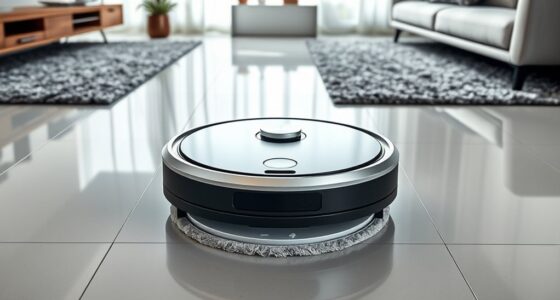
If your robot vacuum automatically switches to mop mode and you prefer vacuum-only cleaning, disabling this feature is straightforward. Most robot vacuums come with multiple cleaning modes, including vacuum-only, mopping, or combination settings. When these devices switch to mop mode by default, it’s usually due to a setting or feature that can be turned off. Your first step is to consult your robot vacuum’s user manual or app, as manufacturers often provide specific instructions for adjusting cleaning modes. Usually, you’ll find an option to disable the automatic switch to mop mode or to select a preferred cleaning mode that excludes mopping.
To disable automatic mop mode, consult your robot vacuum’s manual or app to adjust cleaning preferences and settings.
Many robot vacuums have dedicated apps that give you full control over the cleaning modes. Open the app and navigate to the device’s settings or cleaning preferences. Look for options like “Cleaning Modes,” “Mop Settings,” or “Floor Type” that influence how the robot operates. If you see a toggle for “Auto Mop” or “Switch to Mop Mode,” turn it off. This ensures your robot will stay in vacuum-only mode during its cleaning cycle. Some models also allow you to set a default cleaning mode, so you can specify vacuum-only cleaning as your default, preventing the robot from switching to mop mode unless you manually enable it.
If your robot vacuum doesn’t have a dedicated app, check the device’s onboard controls or touch screen, if available. Many modern models have a control panel where you can select or deselect specific cleaning modes. Simply navigate to the settings menu, locate the cleaning modes section, and disable the mop or wet cleaning feature. For devices that use physical buttons, you might need to press and hold a specific button or follow a sequence outlined in the manual to switch modes permanently.
In some cases, the robot’s firmware might need updating to access new or improved settings that allow you to disable mop mode. Visit the manufacturer’s website or app to see if firmware updates are available, and follow the instructions for installation. Once updated, revisit the settings to ensure the robot is configured for vacuum-only cleaning. Additionally, it’s helpful to understand familiarity with features provided by your device to optimize its operation and avoid unnecessary functionality.
Disabling mop mode is generally a quick process that involves changing a few settings. Whether through the app, onboard controls, or firmware updates, you can easily prevent your robot mop from activating during your vacuum-only cleaning sessions. This way, you maintain control over your cleaning preferences and keep your floors dry and free of unnecessary moisture.
Frequently Asked Questions
Can I Disable Mop Mode Remotely via App?
You can often disable mop mode remotely through the app if your vacuum supports remote app control. Check your device’s app settings for an option to switch to vacuum-only mode. Keep in mind, firmware updates may add or improve this feature, so verify your vacuum’s firmware is current. Regular updates can enhance remote control capabilities, allowing you to toggle modes easily without physically interacting with the device.
Will Disabling Mop Mode Affect Vacuum Suction Power?
Disabling mop mode won’t affect your vacuum’s suction power. Mop mode mainly controls the wet mopping functions, so turning it off allows your vacuum to focus solely on suctioning dirt and debris. When you disable mop mode, your vacuum’s suction power remains unchanged, ensuring thorough cleaning without the wet mopping feature. This way, you get *maximum* suction without compromising the vacuum’s performance.
Is There a Shortcut to Toggle Mop Mode on the Device?
Think of your device as a trusty steed with a toggle shortcut for mop mode. Usually, you can quickly switch it on or off with a dedicated button or via the app. This switch shortcut makes it easy to switch between mopping and vacuum-only cleaning, saving you time and effort. Check your manual or app settings to find the specific shortcut for your model, ensuring smooth transitions between modes.
How Long Does It Take to Disable Mop Mode Manually?
Disabling mop mode manually typically takes just a few minutes. You’ll need to access the device settings, usually via the app or control panel. Perform a manual reset by orienting yourself to the mop mode option and turning it off. This process is quick and straightforward, allowing you to switch to vacuum-only cleaning efficiently. Just follow the prompts, and your device will be set to your preferred cleaning mode in no time.
Does Disabling Mop Mode Save Battery Life?
Coincidentally, disabling mop mode can boost your vacuum’s battery conservation, letting it run longer between charges. When you switch to vacuum-only cleaning, your device uses less power, which improves overall cleaning efficiency. So, yes, turning off mop mode helps you get more out of each charge, making your cleaning sessions more effective and less interrupted. It’s a simple step that maximizes your vacuum’s performance and extends its battery life.
Conclusion
Now, with mop mode turned off, your vacuum glides smoothly across the floor like a swift breeze, leaving only the clean, polished surface behind. The hum of the motor becomes a quiet whisper, echoing the freedom you’ve given your device to focus solely on vacuuming. Imagine your space brightening with every pass, free from the dampness and drags of mopping. Disabling mop mode transforms your cleaning routine into a effortless dance, leaving your home spotless and refreshed.